

Key Takeaways
The Storage Problem Is Rarely What It Looks Like
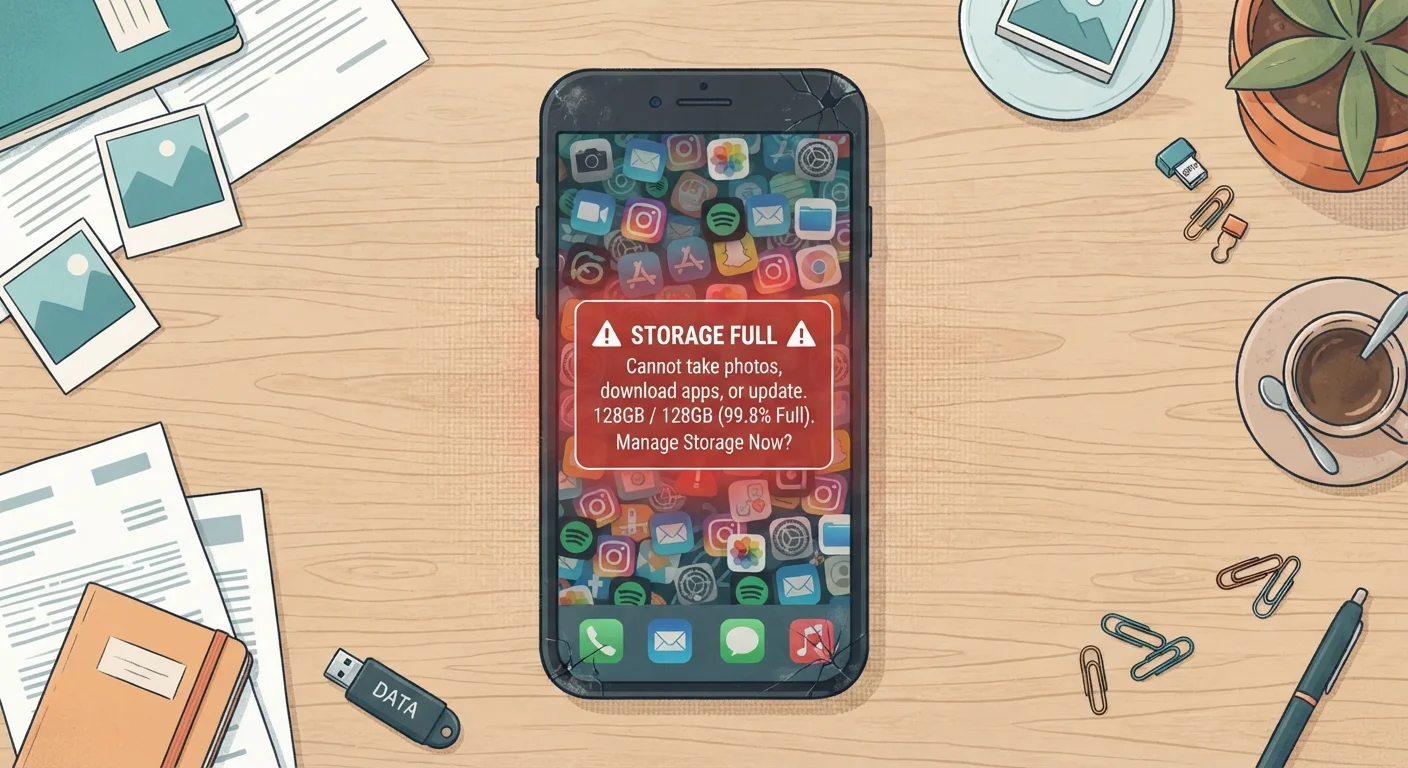
Most people assume their phone storage fills up because they've downloaded too many apps or taken too many photos. While those are contributors, the real culprits are often invisible: data generated automatically in the background, files left behind by apps, and media that accumulates across multiple places simultaneously.
Understanding the actual mechanics of how storage gets consumed — not just the surface symptoms — is what allows you to recover meaningful space and keep it free. See our practical guide to managing smartphone storage for a broader overview of strategies that actually work.
Ignoring app cache buildup over time.
Why it happens: Cache is designed to speed up apps by storing temporary data locally, so users rarely think to clear it. Over months of regular use, a single app can accumulate several gigabytes of cached files.
Letting messaging apps save media automatically without review.
Why it happens: Most messaging apps are configured by default to auto-download photos, videos, and voice messages to your camera roll or internal storage. Users typically don't notice until storage is nearly full.
Keeping offline downloads from streaming apps after they're no longer needed.
Why it happens: Downloading a playlist or a show for a trip feels temporary, but few people remember to remove those files afterward. A few downloaded albums or episodes can easily fill several gigabytes.
Storing duplicate photos without realizing it.
Why it happens: HDR mode, Live Photos, burst shooting, and screenshot habits all generate multiple versions of the same moment. Cloud sync services occasionally create local copies alongside cloud-stored originals.
Assuming deleting apps removes all their associated data.
Why it happens: On some platforms and apps, residual data — saved files, login credentials, local databases — persists even after the app is uninstalled. Users believe they've fully freed the space when they haven't.
What the Numbers Actually Reveal
~4 GB
Typical browser cache size after heavy use
Device analytics from mobile storage management tools suggest browser and app caches routinely reach 3–5 GB on phones that haven't been cleared in six months or more.
60%+
Users who have received a storage full alert
Consumer surveys on smartphone usage consistently find that a majority of users encounter low-storage warnings at least once a year, regardless of their phone's total capacity.
Storage shortfalls are a leading reason people believe they need to upgrade to a higher-capacity device — or a new phone entirely. But in many cases, the existing storage is sufficient; it's simply being used inefficiently. Understanding where each gigabyte goes changes the calculus significantly. If your phone has also been running noticeably slower, storage pressure is one of several factors worth examining — our article on why phones slow down over time explains the connection.
Third-Party 'Cleaner' Apps Carry Risks
Many apps marketed as phone cleaners or storage optimizers request broad permissions to access your files, contacts, and usage data. Security researchers have flagged several such apps for aggressive data collection practices. Your phone's built-in storage tools are generally safer and sufficient for most users. Review permissions carefully before granting any third-party app access to your entire file system.
Building Better Habits Going Forward
Fixing a full phone once is straightforward. The harder part is preventing it from recurring. The most effective approach is a monthly storage audit: open your phone's built-in storage settings, sort by category, and look at what has grown since last month. This takes under five minutes and surfaces problems before they become urgent.
If you frequently find yourself weighing whether to upgrade to a higher-storage model, it's worth reading about the assumptions that lead people to buy more phone than they need — storage capacity is one of the most commonly misjudged specs at purchase time.
Finally, keeping your phone's operating system current matters here too. Newer OS versions often include improved storage management tools and more transparent reporting of what's using space. Software updates carry more benefits than most users realize, and better storage visibility is one of them.
Back Up Before You Delete Anything
Before clearing large amounts of data or performing an app data reset, confirm your photos and important files are backed up to a cloud service or your computer. Clearing app data in particular can remove saved progress, account information, or locally stored documents that cannot be recovered. A confirmed backup takes two minutes and prevents irreversible data loss.