

Key Takeaways
Why Smartphone Storage Feels Like It's Never Enough
Modern smartphones ship with generous storage capacities on paper, yet users frequently hit the limit within a year or two of normal use. The reason isn't necessarily that you have too much content — it's that several invisible processes quietly consume space in the background.
App data grows as you use apps, not just when you install them. A navigation app builds up map caches. A social media app stores previews, videos, and profile images locally. A messaging app accumulates months of photos and voice notes. None of this is visible at a glance, which is why storage problems tend to feel sudden even when they've been building gradually.
Photos and videos are usually the single largest factor, particularly as camera resolution has improved. A one-minute 4K video can consume several hundred megabytes. Multiply that by a few dozen clips and the math adds up quickly. This is also why understanding your actual usage pattern matters more than chasing a higher storage tier — for many people, smarter management eliminates the problem entirely without spending anything. For perspective on where storage spending often fits into broader tech decisions, see what buyers often overestimate when choosing a phone.
Built-in Storage Settings
Shows a breakdown of what is consuming space on your device, organized by category.
Cloud Photo Service
Backs up photos and videos automatically so local copies can be safely removed.
File Manager App
Lets you browse, move, and delete downloaded files, documents, and miscellaneous data.
Streaming App (Music or Video)
Replaces locally stored media files with on-demand streaming to reclaim space.
Step-by-Step: Reclaiming and Managing Your Storage
The steps below apply broadly to both major mobile platforms — Android and iOS — though exact menu labels may differ slightly by device and operating system version. Start at the top and work through each step in order; earlier steps typically free the most space.
What you will need
Check your current storage breakdown
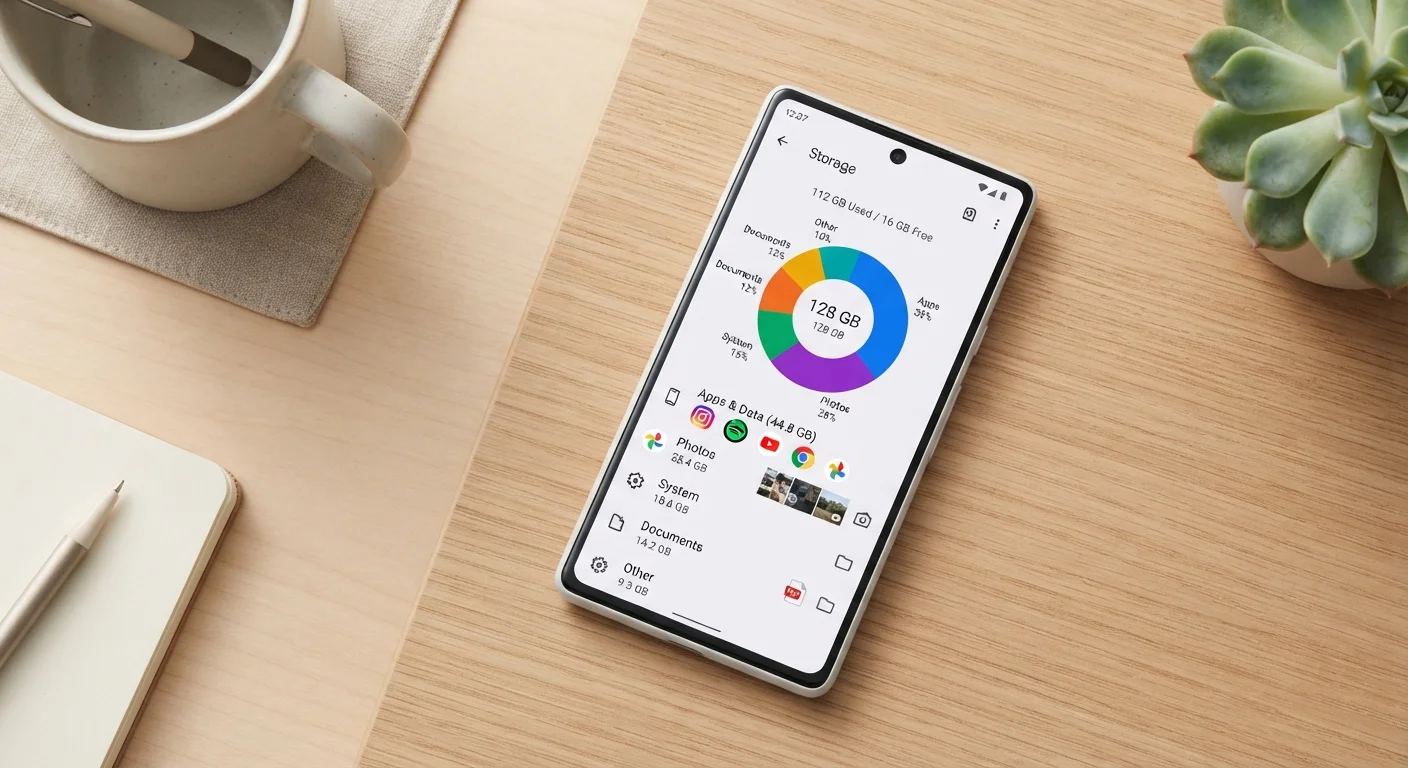
Open your phone's Settings app and navigate to Storage (on Android) or General > iPhone Storage (on iOS). This screen gives you a categorized view of what's using space — apps, photos, system data, and other files. Note which categories are largest before taking any action.
Back up and clear your photo library
Photos and videos are almost always the top offenders. Enable automatic backup through a cloud photo service, wait for the sync to complete, then delete local copies from your device. On most platforms, the cloud service will confirm when a photo is safely backed up before you remove it locally. For more on how cloud storage actually works, see Cloud Storage Explained.
Clear app cache and offline data
Many apps store temporary files — called cache — to load faster. These accumulate silently over time. On Android, go to Settings > Apps, select any large app, and tap Clear Cache. On iOS, some apps offer this within their own settings; others require you to offload and reinstall the app. Streaming apps (music, podcasts, video) often store large amounts of offline content that can be cleared directly within the app's settings.
Delete or offload apps you rarely use
Scroll through your app list and honestly assess which ones you haven't opened in the past month. On iOS, Offloading an app removes the app file but keeps your personal data, so reinstalling later restores your settings. On Android, a standard uninstall removes everything. Either approach frees meaningful space, especially for large games or productivity suites.
Remove downloaded files and documents
Check your Downloads folder and any document apps (Files on iOS, Files by Google on Android). PDFs, zip files, and miscellaneous downloads often sit forgotten for months. Delete anything you no longer need. If a document is important, move it to a cloud storage folder rather than keeping it on the device itself.
Set up ongoing habits to prevent recurrence
One-time cleanup helps, but the real goal is staying ahead of the problem. Enable automatic cloud backup for photos, review your app list monthly, and avoid downloading media you only need once. For context on what causes storage to fill unexpectedly fast, see why phone storage fills faster than expected.
Stream Instead of Store When Possible
For music, podcasts, and video, downloading content locally is rarely necessary unless you need offline access in a specific situation. Streaming the same content on demand keeps your storage free with no noticeable difference in experience on a reliable connection. Review any downloaded playlists or episodes in your media apps and remove content you've already listened to or watched.
Don't Delete Before Confirming Your Backup
The most common storage management mistake is deleting photos or files from a device before verifying the backup actually completed. A progress indicator or 'syncing' message is not confirmation — wait for an explicit 'backed up' or 'up to date' status in your cloud app before removing anything locally. Once deleted without a backup, recovery is often not possible.
When Storage Management Isn't Enough
For most users, the steps above will recover significant space and eliminate the recurring out-of-storage notification. However, there are situations where structural limits apply. If your device has a very small base storage (32 GB or less) and you're a heavy media creator, ongoing management will require consistent effort rather than a one-time fix.
In those cases, consider whether a paid cloud storage plan makes sense — monthly costs for expanded cloud tiers are typically modest and may be more practical than upgrading hardware. It's also worth noting that storage constraints can contribute to broader performance issues over time; a device with less than 10–15% free storage may slow down measurably. For more on that relationship, see why phones slow down as they age.
Keeping your operating system current is also relevant here — some software updates include optimizations that affect how storage is managed. See why mobile software updates matter more than most realize for context on that side of device maintenance.