

Key Takeaways
Device Sync
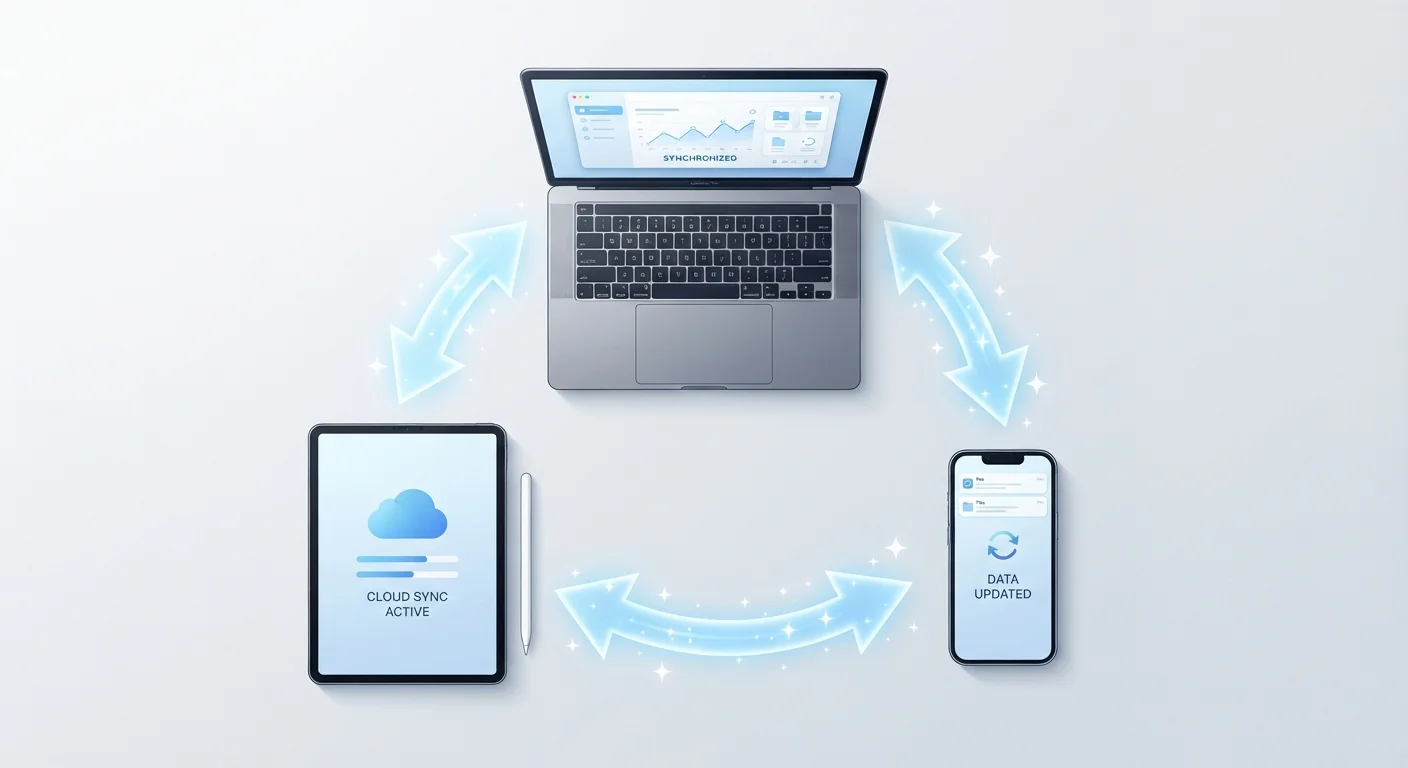
Sync (short for synchronization) is the process by which two or more devices or apps automatically share and match the same data. When you edit a note on your phone, sync is what makes that same updated note appear on your laptop within seconds. It works by sending changes to a central server — usually cloud-based — which then pushes those changes to every other connected device.
Most modern sync systems use a "last write wins" or conflict-resolution algorithm to decide which version of data to keep when two devices make changes at the same time.
How Sync Actually Works
When you turn on sync for an app or service, you're authorizing it to use a cloud server as a shared hub. Your phone sends its current data up to that server; your laptop checks the server and pulls down whatever has changed. The whole process typically happens in the background, silently and automatically.
This is what makes sync so useful for everyday tasks. Edit a shopping list on your phone and it appears on your partner's phone instantly. Update a calendar event on your laptop and your phone reflects the change before you leave your desk. For practical organizational tools, sync is often what makes them worth using at all.
The key mechanism is a timestamp or version marker attached to each piece of data. When two devices compare notes with the server, the most recent version generally wins. This works seamlessly most of the time — until you want an older version back, and discover it no longer exists.
2 billion+
Active iCloud users syncing data globally
Apple has publicly reported over 2 billion active devices in its ecosystem, the majority of which use iCloud sync for at least some data.
~30 seconds
Typical sync propagation time across devices
Most major sync services — including Google Drive and iCloud — propagate small changes across connected devices in under a minute when connected to Wi-Fi.
1 in 3
Users who have lost data due to accidental sync deletion
Industry surveys on cloud storage habits consistently show a significant share of users have experienced unintended data loss through sync-related deletions.
When Sync Becomes a Problem
Sync's greatest strength — speed — is also its biggest risk. Whatever happens on one device happens everywhere, fast. If you accidentally delete a folder, rename a file incorrectly, or a rogue app corrupts data, that change can propagate to all your devices before you notice anything is wrong.
Sync Is Not a Safety Net
Many people assume that because their photos or documents are "in the cloud," they're protected. But sync only mirrors your current state — it doesn't store past versions by default. For truly important files, use a dedicated backup service in addition to sync, not instead of it.
This confusion between sync and backup catches many users off guard. A synced photo library, for example, shows you all your photos on every device — but if the original is deleted or corrupted, the sync ensures that deletion reaches every device. Without a separate backup, the photo is gone permanently.
Another friction point is sync conflicts. If you edit the same document on two devices while offline, the sync system has to decide which version to keep when both reconnect. Some apps handle this gracefully by creating two versions; others silently overwrite one with the other. Knowing how your specific app handles conflicts matters, especially for important documents.
Sync also has privacy implications. When data syncs to a cloud server, it lives on someone else's infrastructure. For personal notes, health data, or financial records, it's worth reviewing the privacy settings of each app. This is especially relevant for smart home devices that share data across a household ecosystem.
“The biggest misconception about cloud sync is that people treat it as a backup. Sync is a mirror — whatever you do to the original, you do to the reflection.”
— A data recovery specialist, Certified data recovery professional and cloud storage consultant
How to Use Sync Safely
The practical answer isn't to avoid sync — it's to understand what it does and doesn't protect you from. A few habits make a significant difference:
- Separate sync from backup. Use a dedicated backup solution (a local hard drive or a separate cloud backup service) for files you can't afford to lose. Sync keeps things current; backup keeps things recoverable.
- Audit what you're syncing. Most operating systems let you choose which apps and folders sync. Limiting sync to what you actively need reduces clutter, data usage, and risk. On smartphones and tablets, check your account settings periodically to see what's being sent to the cloud.
- Check conflict behavior before you rely on an app. If you use a notes or documents app across multiple devices, test what happens when you edit offline on two devices simultaneously. Knowing the outcome ahead of time prevents unpleasant surprises.
- Be deliberate with deletions. Before deleting a large batch of files on a synced drive, pause and confirm you have a backup or that you're certain you no longer need them. Sync will broadcast that deletion immediately.
Sync is one of the more powerful conveniences in modern digital life — it eliminates the friction of manually moving files between devices. But it rewards users who take a few minutes to understand its boundaries. For a broader look at managing your digital tools day-to-day, see tools everyday people use to stay organized.