

Key Takeaways
Accessibility Tools Are for Everyone
When most people hear "accessibility features," they picture accommodations for users with visual impairments or motor disabilities. That framing undersells what these tools actually do. Modern smartphones from both major platform ecosystems include sophisticated built-in features that improve usability, reduce fatigue, and make everyday tasks faster — regardless of whether you have a diagnosed condition.
From construction workers squinting at a screen in bright sunlight to parents trying to limit screen time for kids to older adults navigating small text, accessibility settings address friction points that affect a wide range of everyday users. As noted in our guide on which smartphone capabilities are genuinely useful, the most valuable features are often the ones already installed — not premium upgrades.
Below are seven accessibility features worth knowing about, regardless of where you fall on the tech-comfort spectrum.
Display Zoom and Large Text
Increasing text size or overall display zoom isn't just for users with low vision — it reduces eye strain for anyone reading in difficult lighting or on a small screen. Both iOS and Android allow you to scale text independently of other interface elements, so you can make reading comfortable without distorting app layouts. If you've ever held your phone at arm's length to read a notification, this setting addresses exactly that.
Scaling text reduces eye strain for everyday users, not just those with low vision.
Live Captions
Live Captions generates real-time on-screen transcriptions of audio playing on your device — video calls, podcasts, social media clips, and more. The feature works entirely on-device on most current hardware, meaning no audio is sent to external servers. Beyond its original purpose of supporting deaf and hard-of-hearing users, it's genuinely useful for anyone watching a video in a noisy environment or in a setting where audio can't be played aloud.
Live Captions works on-device and transcribes audio in real time — even in noisy environments.
Voice Control and Voice Typing
Voice Control allows you to navigate your phone entirely by speaking commands — opening apps, scrolling, tapping buttons — without touching the screen. Voice Typing (dictation) lets you compose messages, emails, and notes by speaking. These tools were developed for users with motor impairments, but they're practical for anyone driving, cooking, or otherwise occupied. Dictation in particular is faster than typing for most people once they get used to it.
Dictation is faster than typing for most people once they build the habit.
Color Filters and Display Accommodations
Color filters adjust how your screen renders color, originally designed to help users with color blindness distinguish on-screen elements. In practice, options like reduced white point or night-mode filters also reduce glare and eye fatigue during extended use. If you find your screen harsh at night or in low-light settings, these adjustments — separate from standard brightness controls — can make a meaningful difference in comfort.
Color filters reduce glare and eye fatigue, not just colorblindness-related challenges.
Reduce Motion
Reduce Motion minimizes the animated transitions between apps and screens — the parallax scrolling, zooming, and sliding effects that are standard in most mobile interfaces. For users with vestibular disorders or sensitivity to motion, these animations can cause genuine discomfort. For everyone else, turning them off often makes the phone feel snappier and less visually busy. It's one of the simplest settings changes with an immediate, noticeable effect.
Turning off motion effects makes the phone feel faster and less visually cluttered.
Screen Time and Focus Modes
These features sit within broader accessibility and digital wellbeing frameworks. Screen Time (iOS) and Digital Wellbeing (Android) let you set daily limits on app usage, schedule downtime, and block certain apps during specific hours. Focus modes allow you to filter notifications based on what you're doing — working, sleeping, or driving. The goal is reducing cognitive overload, which aligns with broader mental wellness considerations that digital tools increasingly address.
Focus modes reduce notification overload — a practical tool for managing daily attention.
AssistiveTouch and Gesture Shortcuts
AssistiveTouch (iOS) creates a floating on-screen button that replicates physical gestures and hardware buttons. Android offers similar customizable gesture controls. Originally designed for users who have difficulty with physical button presses, these tools also let power users build custom shortcuts for frequently used actions. If your phone's volume button is finicky or you want faster access to screenshots or the flashlight, gesture shortcuts offer a practical workaround that has nothing to do with disability.
Gesture shortcuts let any user replace physical button presses with custom on-screen actions.
Start Exploring — It Takes Less Time Than You Think
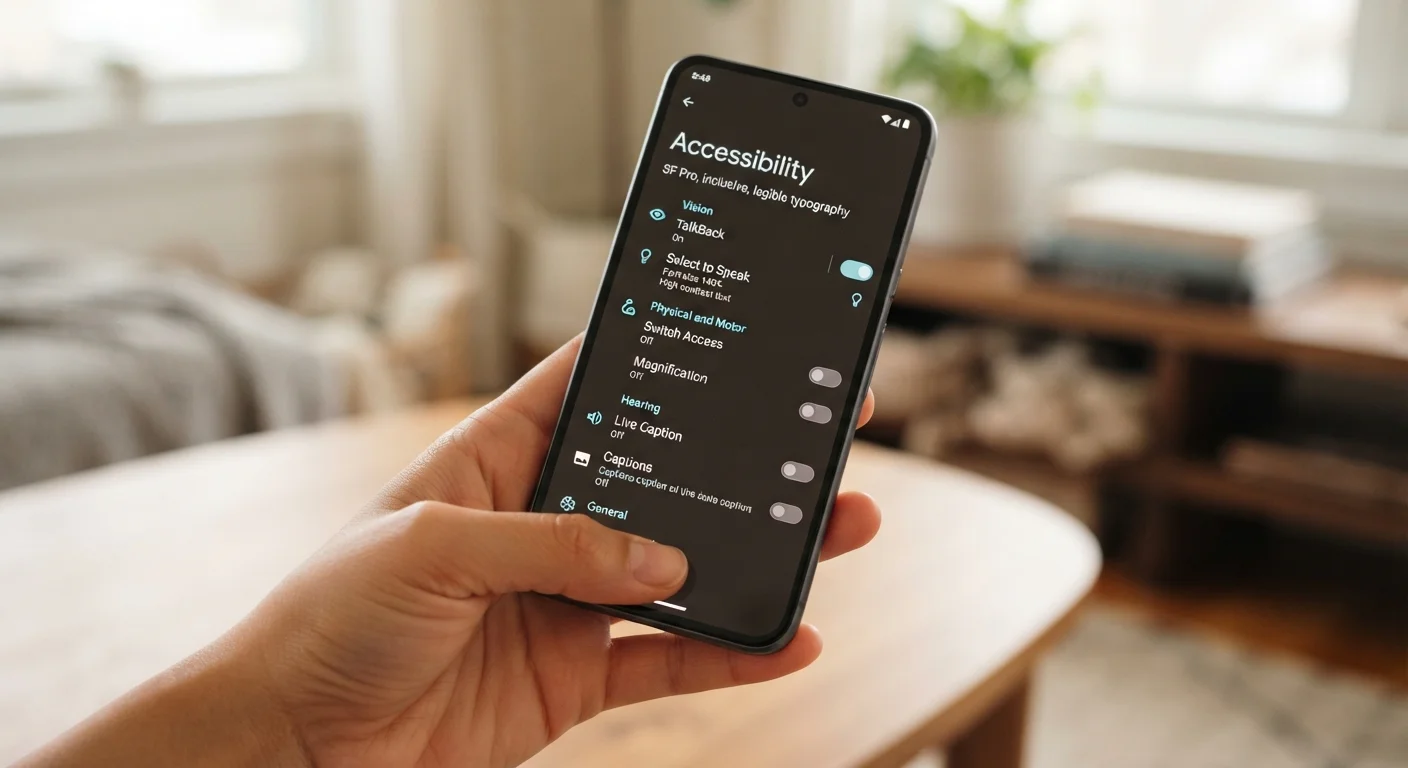
Every feature listed here lives in your phone's native settings — no third-party apps required. On iPhone, head to Settings > Accessibility. On Android devices, look under Settings > Accessibility (exact path varies slightly by manufacturer). Most adjustments take under two minutes to configure.
Check Accessibility Settings Before You Shop
If you're considering a new phone, reviewing the accessibility settings on your current device is a good way to understand which features matter most to you. That knowledge can help you prioritize what to look for — or confirm that your existing phone already has what you need. See our checklist on what to verify before purchasing connected devices for a similar pre-purchase evaluation approach.
If you're just getting started with making better use of your phone's built-in tools, our practical introduction to digital tools offers useful grounding. And for users building out a fuller mobile toolkit, everyday organizational tools pairs well with the features described here.
This article provides general informational guidance about built-in smartphone features. Individual device capabilities vary by model, operating system version, and manufacturer. Consult your device documentation for specific steps.