

Key Takeaways
What a Router Actually Does
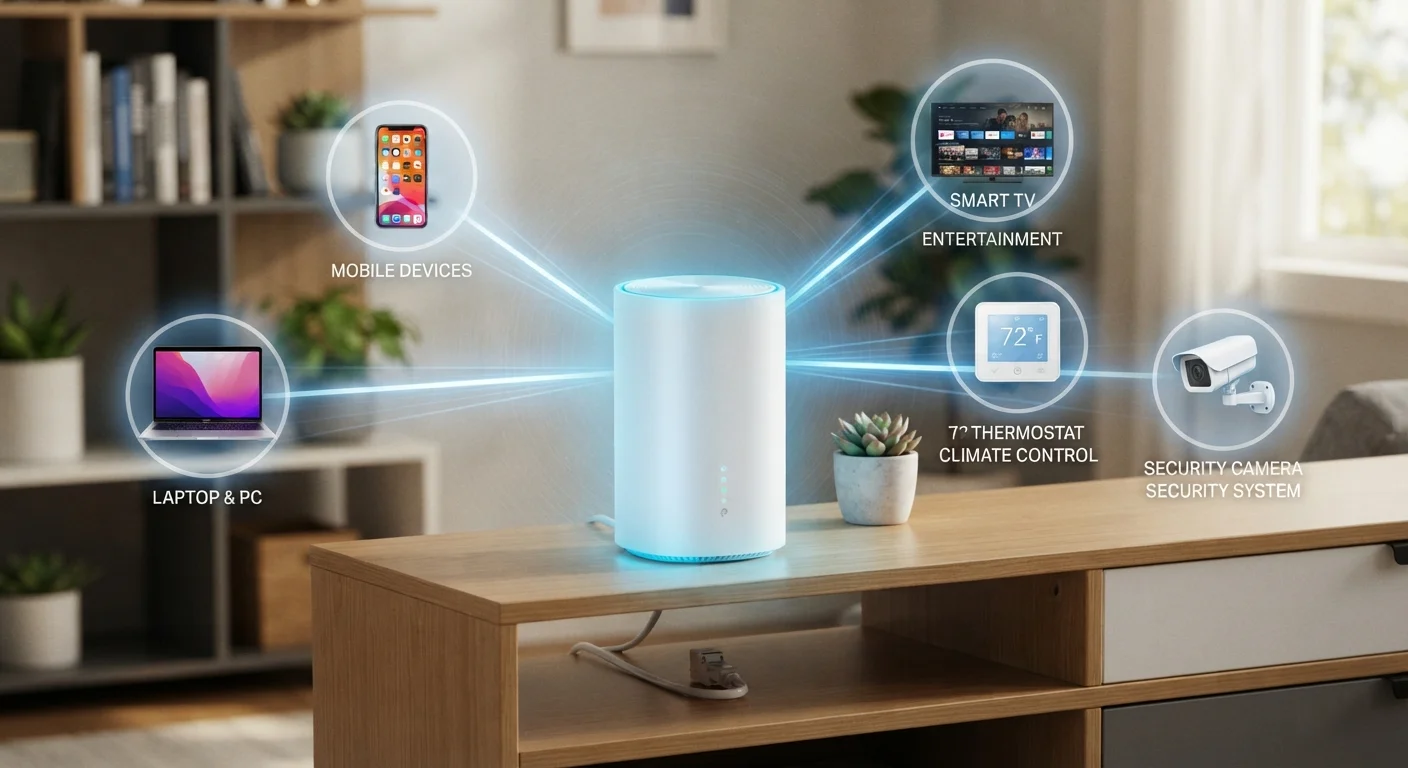
Think of your home router as an air traffic controller. Every device in your home that connects to the internet sends and receives data in small packets. The router's job is to direct those packets to the right destination — whether that's a streaming server, a smart home cloud platform, or a video call — and to do it for dozens of devices at once.
Your router sits between two networks: your home's local area network (LAN), which connects your devices to each other, and the wide area network (WAN), which is the broader internet delivered by your internet service provider (ISP). It assigns each device a private IP address — a numerical label that helps it route the right data to the right device — through a process called DHCP (Dynamic Host Configuration Protocol).
Most people only interact with their router when something stops working. But understanding what it manages day to day gives you real leverage over performance, security, and cost. See how the router fits into the bigger picture of running a modern household.
17+
Average connected devices per U.S. household
According to Deloitte's 2023 Digital Consumer Trends survey, the average American home has more than 17 internet-connected devices.
25 Mbps
Bandwidth needed for a single 4K stream
Streaming services like Netflix recommend approximately 25 Mbps for a stable Ultra HD stream, per their published guidelines.
~57%
U.S. homes with smart home devices
Statista research indicates that a majority of American households now include at least one smart home product beyond phones and computers.
The Devices Using Your Network Right Now
The average American home now contains far more internet-connected devices than most people realize. Beyond the obvious — laptops, smartphones, and tablets — your router is likely also serving:
- Smart TVs and streaming sticks pulling video from services like Netflix, YouTube, or Hulu
- Smart speakers and voice assistants that maintain a persistent connection to cloud servers
- Thermostats, locks, and doorbells that send status updates and receive commands continuously
- Security cameras uploading footage to cloud storage, sometimes around the clock
- Game consoles downloading updates, syncing profiles, and enabling multiplayer
- Printers, NAS drives, and media servers accessible over your local network
- Wearables syncing health data via a phone or directly over Wi-Fi
Each of these is a separate node your router must track and serve. If you want to understand what truly earns its place in your home versus what's unnecessary load, this room-by-room breakdown is worth reading alongside this guide.
Pull up your router's connected device list at least once a season — not to troubleshoot, but just to see what's there. Devices accumulate silently, and you'll often find gadgets you forgot were online.
Unmonitored devices can consume bandwidth, introduce security gaps, and represent a household cost if they're driving cloud storage or subscription fees you've lost track of.
When setting up any new smart device, change its default password immediately and connect it to a separate IoT or guest network rather than your primary Wi-Fi.
Default credentials are documented publicly and widely exploited; isolating IoT devices limits the blast radius if one is compromised.
Bandwidth: Who Gets How Much
Bandwidth — measured in megabits per second (Mbps) — is your network's carrying capacity. Your ISP delivers a set amount to your home, and your router distributes it among all active devices. The key word is shared: a 4K video stream might consume 15–25 Mbps on its own. Run three simultaneously alongside a video call and a cloud backup, and even a 200 Mbps plan can feel strained.
Many modern routers support a feature called Quality of Service (QoS), which lets you prioritize certain types of traffic — for example, ensuring a video call gets bandwidth before a background software update. Not all consumer routers expose QoS settings in an accessible way, but it's worth checking your router's administration panel (typically reachable at a local address like 192.168.1.1 or 192.168.0.1).
Streaming quality is one of the first things affected by a congested network. If your picture frequently drops in resolution or buffers, the problem may not be your TV or your subscription — it's often the network path. Our guide on why your streaming setup loses picture quality breaks down the common culprits in detail.
Physical placement of your router also matters significantly. Walls, floors, and interference from other wireless devices reduce signal strength. If coverage is inconsistent across rooms, a mesh Wi-Fi system versus a traditional single router may be worth comparing.
Security Implications of a Crowded Network
Every device on your network is a potential entry point. Smart home gadgets in particular are often built with convenience rather than security as the primary design goal — they may receive infrequent firmware updates, use weak default credentials, or transmit data with minimal encryption.
When a poorly secured device sits on the same network as your laptop or phone, a compromised gadget can potentially be used to observe other network traffic or attempt access to other devices. This isn't a theoretical concern: security researchers have documented real-world cases where smart devices have been exploited as footholds in home networks.
Default Passwords Are a Known Vulnerability
Many smart home devices ship with the same factory-set username and password across millions of units. These credentials are often published online and actively exploited by automated scanning tools. Changing default passwords on every device — including the router itself — is one of the single most impactful security steps a household can take. Do not skip this step when setting up any new connected device.
One of the most effective mitigations is network segmentation — placing IoT (Internet of Things) devices on a separate network from your primary devices. Most modern routers allow you to create a guest network, which can serve this purpose. Learn how to set up a guest Wi-Fi network to keep visitor and IoT traffic isolated from your main devices.
For a broader set of habits that reduce real-world risk, these practical smart home security habits are a natural next step after understanding what's on your network.
Unrecognized Devices Deserve Immediate Attention
If you find a device in your router's connected list that you cannot identify, do not assume it's harmless. It may be a neighbor inadvertently connecting to an unsecured network, or it may indicate unauthorized access. Block or remove the device from your router's admin panel and consider changing your Wi-Fi password as a precaution. If suspicious activity persists, contact your ISP.
Practical Steps to Manage Your Home Network
You don't need to be a network engineer to meaningfully improve your home setup. These actions are accessible to most consumers and have measurable impact:
- Audit connected devices. Log into your router's admin panel and look for a device list or connected clients section. Remove or block anything you don't recognize.
- Change default credentials. Default router usernames and passwords are publicly documented. Change both the admin login and your Wi-Fi password to something unique and strong.
- Enable automatic firmware updates if your router supports it. Firmware updates patch known security vulnerabilities.
- Create a separate network for IoT devices. Use a guest network or a dedicated SSID (network name) for smart home gadgets, keeping them away from computers and phones.
- Restart your router periodically. This clears temporary memory, applies pending updates, and can resolve intermittent performance issues. Monthly is a reasonable cadence for most households.
- Check your router's position. Central, elevated placement away from walls and large metal objects generally improves Wi-Fi coverage.
A Monthly Router Restart Pays Off
Routers, like any computer, benefit from an occasional restart. It clears the device's memory cache, resolves minor software glitches, and ensures any pending firmware updates are applied. Setting a monthly reminder to reboot your router takes less than two minutes and can measurably improve both speed and stability over time.
Managing a home network doesn't have to be a technical project. A few deliberate habits — auditing, separating devices, and keeping firmware current — go a long way toward a faster, more secure experience for every person and device in your household.